🧪 AWS S3 Static Website & CLI Management Guide...
What is Amazon S3?
Amazon S3 (Simple Storage Service) is an AWS service used to store files and objects. It is commonly used for backups, images, videos, and hosting static websites because it is fast, secure, and low cost.
PART 1: Deploy a Static Website on S3…
Step 1: Create an S3 Bucket
-
Create a bucket to store your website files. The bucket name must be unique.
-
Go to AWS Console → S3
-
Click Create bucket
-
Enter a unique bucket name
-
Choose a region
-
Uncheck Block all public access
-
Create the bucket
Step 2: Upload Website Files
-
Upload the website files that will be shown to users.
-
Open the bucket
-
Upload:
-
index.html
-
error.html
-
Click Upload
Step 3: Enable Static Website Hosting
-
This allows S3 to serve your files as a website.
-
Go to Bucket → Properties
-
Enable Static website hosting
-
Set:
-
Index document: index.html
-
Error document: error.html
-
Save changes
Step 4: Add Bucket Policy (Public Read)
This policy allows everyone to view the website.
{
  "Version": "2012-10-17",
  "Statement": [
    {
      "Effect": "Allow",
      "Principal": "*",
      "Action": "s3:GetObject",
      "Resource": "arn:aws:s3:::YOUR_BUCKET_NAME/*"
    }
  ]
}
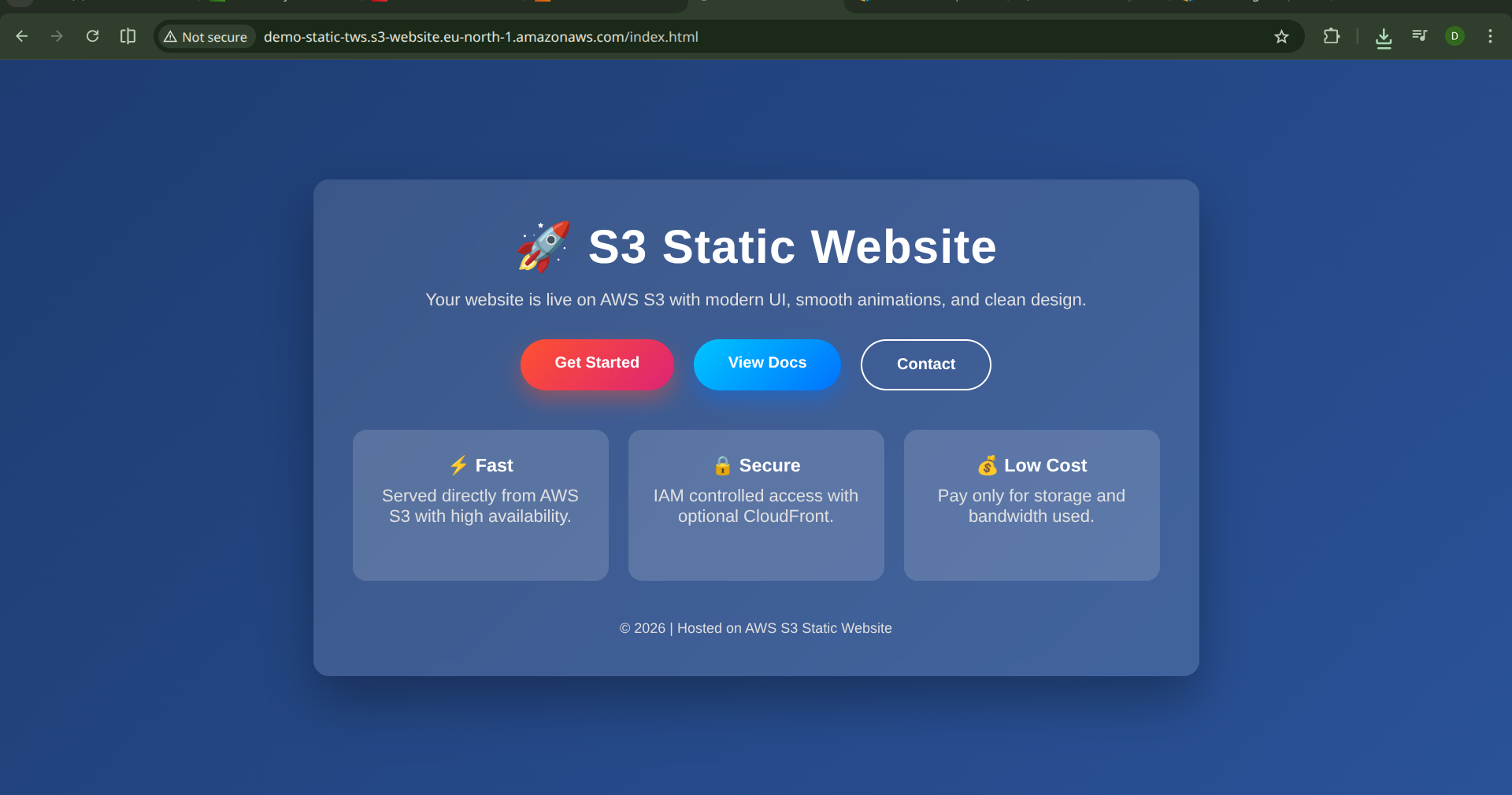
✅ Open the S3 Website Endpoint. 🎉 Your static website is now live.
PART 2: Create an EC2 Instance…
Step 1: Launch EC2
EC2 is used as a server to manage AWS services using CLI.
-
Go to EC2 → Launch Instance
-
Name: s3-cli-server
-
AMI: Amazon Linux 2
-
Instance type: t2.micro
-
Create/select key pair
-
Allow SSH (port 22)
-
Launch instance
Step 2: Connect to EC2
Connect to your EC2 instance using SSH.
ssh -i key.pem ec2-user@PUBLIC_IP
PART 3: Create IAM User for S3 Access
IAM user is used to securely access AWS services from CLI.
-
Go to IAM → Users → Create user
-
Username: s3-cli-user
-
Select Programmatic access
-
Attach policy: AmazonS3FullAccess
-
Create user
-
Save:
-
Access Key
-
Secret Key
-
⚠️ Never share these keys
PART 4: Configure AWS CLI on EC2…
Install AWS CLI
AWS CLI allows you to manage AWS using commands.
sudo apt install aws-cli -y
Configure AWS CLI
aws configure
Enter:
- Access Key
- Secret Key
- Region (e.g. us-east-1)
- Output format: json
PART 5: Manage S3 Using AWS CLI…
Below are cmd that use to show s3 bucket update delete through AWS CLI…
List All Buckets
aws s3 ls
List Files in a Bucket
aws s3 ls s3://my-static-site-demo-123
Upload a File
aws s3 cp test.txt s3://my-static-site-demo-123/
Download a File
aws s3 cp s3://my-static-site-demo-123/index.html .
Delete a File
aws s3 rm s3://my-static-site-demo-123/test.txt
Delete All Files in a Bucket
aws s3 rm s3://my-static-site-demo-123 --recursive
Delete Bucket
aws s3 rb s3://my-static-site-demo-123 --force
Final Summary…🎉
Amazon S3 is used for object storage and static websites…
Static websites on S3 are fast and low cost…
EC2, IAM, and AWS CLI help manage S3 securely…
AWS CLI is very useful for DevOps automation…